
Download Cura Slicer – A State-of-the-art slicer app to prepare your 3D models for your 3D printer.
UltiMaker Cura comes with hundreds of settings & community-managed print profiles, Ultimaker Cura is sure to lead your next project to a success.
Cura is an open-source 3D printing slicer software developed by Ultimaker. It is used to prepare digital 3D models for printing by converting them into instructions that a 3D printer can understand, often referred to as G-code. Cura takes a 3D model file, typically in formats like STL, OBJ, or 3MF, and slices it into many horizontal layers to create a path that the 3D printer will follow to produce the physical object.
What is UltiMaker Cura / Cura Slicer ?
UltiMaker Cura is a widely used, open-source 3D printing software developed by UltiMaker, formerly known as Ultimaker. It serves as a slicing application, which means it takes 3D models (typically in STL, OBJ, or 3MF formats) and converts them into a format that a 3D printer can understand, known as G-code. G-code contains the specific instructions that guide the printer on how to create an object layer by layer.
Slicers are complex applications. They can take a 3D model of any shape or size and calculate a 3D printing strategy that will faithfully reproduce the model in the physical world. Slicers also do other things: they can generate patterns that fill a model’s interior geometry, so it has extra strength and rigidity. They can also generate support structures for model overhangs, so you get better 3D printing results. There’s a lot more they can do, which we will explore in detail below. While slicers are complex applications, a good slicer will strike a balance between complexity and ease of use.
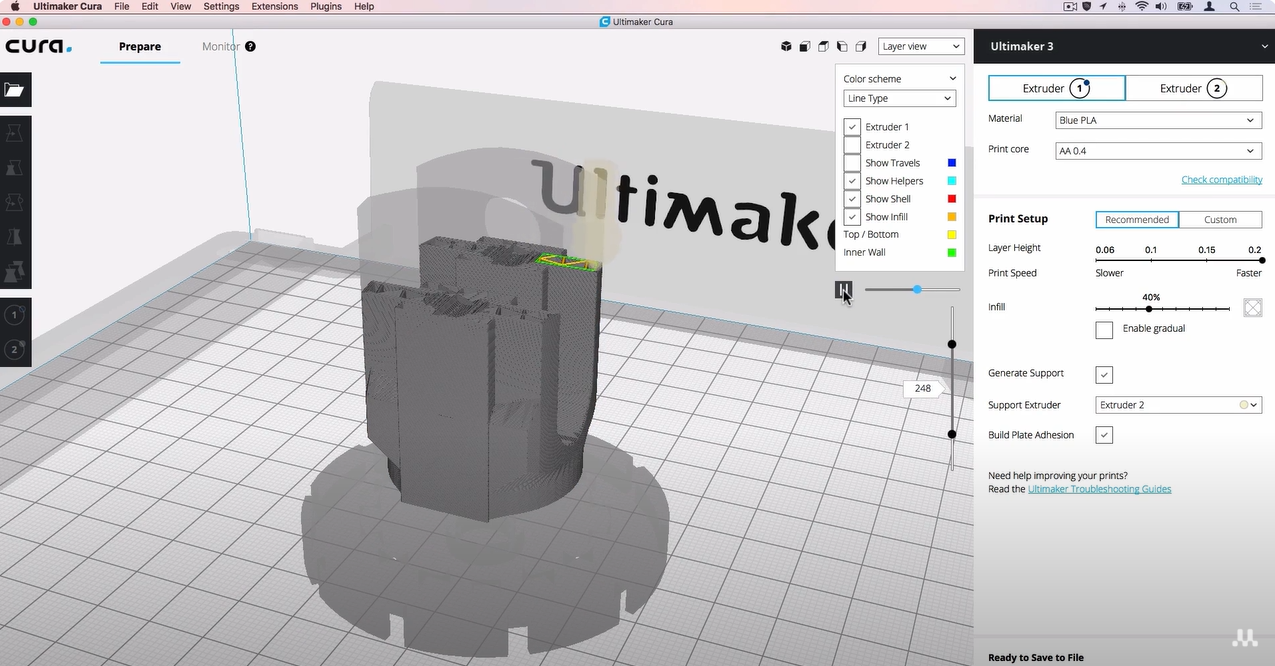
The software is highly popular due to its user-friendly interface, extensive customization options, and robust compatibility with a wide range of 3D printers, not just UltiMaker-branded models. UltiMaker Cura simplifies the often complex process of 3D printing, making it accessible for both beginners and experienced users alike.
Cura stands out because of its balance between ease of use and powerful customization. It’s a great tool for hobbyists, educators, and professionals who need reliable, high-quality 3D prints. The software is also continually updated by an active community and the UltiMaker team, ensuring ongoing improvements and compatibility with new hardware.
Key Features

Extensive Customization Options
Cura offers over 400 settings for fine-tuning print profiles, allowing users to optimize their prints based on speed, quality, and material. It includes both a “Recommended Mode” for beginners and an advanced “Custom Mode” for experienced users.

Engine Plugins and Marketplace
Cura supports a range of plugins that enhance its functionality, including the integration of third-party software and materials. With its new engine plugins introduced in version 5.5, users can further extend Cura’s capabilities for more specialized tasks.

Optimized Print Speeds and Quality
Cura continuously improves print performance, with recent versions enhancing slicing algorithms and print pathing. Features like optimized speeds for different line types (outer walls, supports, infills) and smoother internal wall pathing significantly reduce print times without compromising quality.

Intent Profiles
Cura provides intent profiles tailored for specific print goals (e.g., visual quality, engineering strength, or fast drafts). These profiles simplify the process of choosing settings, especially for different nozzle sizes like 0.4 mm or 0.8 mm.

Tree Supports and Brim Improvements
The software includes advanced support structures such as updated tree supports for easier removal and reduced material use, as well as “Smart Brim” features that help improve bed adhesion and make the removal process smoother.

Integration with CAD and Third-Party Printers
Cura integrates seamlessly with major CAD platforms like SolidWorks, Siemens NX, and Autodesk, and supports a wide variety of file formats, making it adaptable for both UltiMaker and third-party printers.
Download Cura Slicer
What's new in UltiMaker Cura 5.14.0
New features and improvements:
Paint-on-Support You can now define custom support areas by manually by painting regions to enforce, avoid, or auto-generate supports using an interactive overhang angle slider.
You can also Paint Surface a surface by selecting an entire contiguous faces or curved features in a single click to apply paint on support or draw straight lines for paint on support using Shift and Shift + Ctrl shortcuts.
You can now navigate the settings panel more easily with a tabbed organization layout by default, based on the Tabbed Settings plugin by @fieldofview and contributed by @HellAholic
This version of Cura comes with a build for Windows on ARM, to help users with laptops who have a processor based on ARM architecture. If you have a Mac with ARM, those builds have been available for a while now.
- Easily spot unsupported areas with distinct line-type colors for overhangs and bridges in the layer preview window.
- Updated the skin strategy so that small roof and floor areas are printed in a unified way, reducing surface fragmentation and unnecessary travel moves.
- Enable support reminder for models with severe overhangs without supports enabled
- Pop-up dialogs are now created dynamically, improving boot times and reducing memory usage
- Start and end G-code template formulas, along with end-of-print variable replacements (like total print time), are now processed directly within CuraEngine, contributed by @wawanbreton
- Start and end G-code templates now support substring matching and list syntax (e.g., material_type in ['TPU', 'TPU 95A']).
- Generated G-code files now list active CuraEngine plugins in their metadata headers.
- Upgraded our underlying UI framework from Qt 6.6 to Qt 6.10, resulting in a number of smaller changes like a new top bar for macOS
- This version of Cura comes with a build for Windows on ARM, to help users with laptops who have a processor based on ARM architecture. If you have a Mac with ARM, those builds have been available for a while now.
- Fix symbol encoding across all post-processing scripts, contributed by @GregValiant, resolves #21624
- Navigate the settings panel more easily with a tabbed organization layout, based on the Tabbed Settings plugin by @fieldofview and contributed by @HellAholic
- Added an option to the right-click menu when a single model is selected to show the location of the file containing the model on the disk. Does not work for grouped models, for multi-selection, or copied meshes; contributed by @HellAholic
- Added an option to define a default save and load location. This overrides Cura's default behavior of opening the last-used save/load location. It can be toggled on or off in Preferences, contributed by @HellAholic
- Overhauled and stabilized the PauseAtHeight.py Post-processing script, contributed by @GregValiant and @HellAholic
- Added a feature to define different preferred materials and extruders for multi-tool printers. The preferred entries in the definition file now accept a list in addition to the previous single-entry string.
- Support settings are now always visible, as supports can be painted directly on the model
New Settings:
- Inner Wall Inset: Defines an intentional offset or gap between the outer wall and the outermost inner wall and helps reducing infill artifacts protruding through the walls
- Branch Smoothing Layers: Will smoothen the tree support branches and makes it harder for them to fall over
- Support Wall Thickness: is a more finegrained version of Number of Support Walls and will increase the amount of walls to surround the support infill
- Support wall settings help tree support walls to transition gradually in wall thickness to avoid weak points, Support Enlarged Wall Thickness, Support Wall Unenlarged Bottom Layers, Support Wall Unenlarged Top Layers, Support Wall Smooth Layer Width.
- Support base settings to improve the sturdiness of tree support bases and improve adhesion like Enable Inner Support Base, Support Inner Brim Width, Support Inner Brim Line Count, Enable Outer Support Base, Support Base Height ,Support Inside Base Height, Support Outside Base Height, Support Base Width, Support Base Inside Width, Support Base Outside Width, Support Base Slope, Support Inside Base Slope, Support Outside Base Slope
- Minimum Infill Line Length allows filtering of small infill islands. This filters based on the total length of infill area (island). Currently set to 0 (disabled) but should be 4x to 10x nozzle width as base value to filter out any infill area that is super small.
- Wall Line Count Skin: Replaces Skin Outline Count to streamline boundary line configuration for skin layers.
- Maximum Bridge Deviation: Explicitly controls the maximum radial deviation (from a straight line) that bridging lines may have without encountering another anchoring point.
Bug fixes:
- Wall overhang speed and Wall seam placement overhang filter are now support-independent; addition/removal of support does not change the behavior.
- Fixed generic slice crashes triggered by non-manifold or complex geometries, meaning you no longer need to reposition models to get them to slice.
- The Z position of grouped models in 3mf will be applied with the bounding box of the group; previously it was ignored. So if the group is sunk into the build plate slightly, previously we would place the group on top of the build plate, and now we respect the position in 3mf for the group.
- Improved the structure of the application to better handle the 3mf files when loading and saving.
- Ensured Infill skin support and bridging fan speeds respect the global Enable Print Cooling toggle.
- Fixed Infill skin support so it correctly adheres to user-defined Infill Overlap Percentage values, and fixed smart skipping in regions with multi-layer Infill.
- Fixed extruder assignment calculations for bottom skin and flooring layers.
- With the move of the gcode start/end variable replacement to engine, we now have accurate data available to indicate the correct initial extruder even when it's not specifically overridden on the front end
- Support brim minimum hole area should be visible when there is support brim enabled in addition to either support being enabled or a support mesh being present. With the previous support_brim_enable condition in isolation, the setting would be visible when no support is generated, or no support mesh is present.
- The Initial Layer Temperature now applies correctly for the ZigZag pattern; previously, it would discard the temperature as the command would be executed at the beginning of the ZigZag pattern in layer 0. Now it fires at the expected moment (Same as Line pattern) at the end of Layer 0, before the start of Layer 1, contributed by @HellAholic
- Fixed a bug where Enable Bridge Settings could not be configured per-mesh.
- Fixed the simulation layer slider ignoring arrow key inputs on high-layer-count prints.
- Ensured pending text and setting edits are committed automatically before closing dialogs.
- Fixed missing build plate grids and backplate images during initialization.
- Ensured the Open Project dialog behaves as a modal child of the main Cura window, and fixed dialog window centering under Linux (Qt 6.10).
- Settings that rely on automatic defaults now explicitly display "Auto" instead of "-1".
- Added a tooltip for the post-processing script indicator
Bugs resolved since the Beta release
- Enforced maximum acceleration of the long Z travel when moving up and down between multiple one-at-a-time objects in the Cheetah G-code flavor
- Prevented tree support from being printed twice in the same spot in some specific cases
- Fixed a bug with the Material Export saving flow for macOS
- Made sure the windows for Linux users pop up in the center of the screen
- Fixed the line breaks and truncation for a number of windows in languages other than English
- Restored some translation in menu options
- Fixed some exceptions where overhang settings were not applied correctly
- Resolved an issue where the support base was not applied correctly and would result in a missing support first layer
- Resolved an issue where a crash could occur after opening an STL file, contributed by @tednv (#21893)
- Adjusted the formula to calculate the support Z-distance with Breakaway on Factor 4 and Factor 4+
Printer definitions, profiles and materials:
- Generic Definitions: Cleaned up the fdmprinter base definition by fixing initial bottom layer formula calculations and simplifying division expressions. Provided sensible fallback parameters for skin support when bridging settings are disabled.
- UltiMaker Factor 4+: Tuned default print profiles to deliver better overhang surface quality, optimized bridging, hidden Z-seam alignment, and higher tree support stability.
- UltiMaker Factor 4 and 4+: Improved the Z distance for some material+support combinations
- UltiMaker S3 & S5: Resolved circular speed formula dependencies in profiles.
- UltiMaker S8: Corrected a typo in the gradual_flow_enabled parameter.
- MakerBot Sketch Sprint: Fixed top surface expansion edge cases to improve top layer finish.
- Elegoo Neptune 3 Pro: Fixed acceleration limits, retraction combing, and end G-code routines, contributed by @jeff-dagenais
- Anycubic K3 (ACE Pro): Removed hardcoded T0 extruder references from the start G-code, contributed by @SamBkamp
Release notes from the GitHub release page, published November 5, 2026.
How to Install Cura Slicer?
Here is a step-by-step guide on how to install Ultimaker Cura for your 3D printer:
For Windows:
- Double-click the downloaded
.exefile. - Follow the on-screen prompts by selecting “Next” through the setup wizard. You may need to agree to the licensing agreement.
- Choose a destination folder for Cura or leave it set to default.
- Cura will install necessary components, including file associations for 3D printing file types like
.STLand.3MF. - After installation, make sure the “Run Ultimaker Cura” box is checked, then click “Finish.”
For macOS:
- Open the
.dmgfile you downloaded. - Drag the Cura icon into your Applications folder.
- After installation, open Cura from the Applications folder.
For Linux:
- Download the appropriate AppImage file.
- Make the file executable by running the command: (Bash)
chmod +x Ultimaker_Cura-<version>.AppImage - Run the AppImage by double-clicking or running the command: (php)
./Ultimaker_Cura-<version>.AppImage
Getting started
After installation, Cura will automatically guide you through a setup wizard where you will need to add your printer and configure it.
Step 1: Adding Your Printer
Cura supports a wide range of 3D printers, including Ultimaker and non-Ultimaker models. Here’s how to set up your printer:
- Open Cura and click “Add a Printer” during the initial setup.
- If you’re using a non-networked printer, you’ll be prompted to select your printer from a list of manufacturers or add a custom profile if your printer isn’t listed.
- You can also manually set parameters like the build volume and nozzle size to match your specific 3D printer model.
Step 2: Understanding Cura’s User Interface
Cura’s user interface (UI) is clean and relatively straightforward, though it offers powerful tools for users. The workspace is divided into several key sections:
- Toolbar: Located on the left, this allows you to load models, adjust their scale, position, and orientation on the virtual print bed.
- Settings Pane: On the right side, you’ll find your print settings. Beginners can use the “Recommended” mode, which offers simple settings for quick prints. As you grow more comfortable, switch to “Custom” mode for more detailed control over parameters like infill density, support structures, and layer heights.
Step 3: Importing and Slicing a Model
Once your printer is set up, you can import your 3D model:
- Supported File Formats: Cura accepts
.STL,.OBJ, and.3MFfiles. Simply drag and drop your file into the workspace or click the “Open File” button. - Positioning the Model: Use the scaling, rotating, and positioning tools to ensure your model fits within the print bed and is oriented optimally. Rotating your model might reduce the need for supports, saving you material and time.
Step 4: Configuring Basic Print Settings
For beginners, Cura offers preset profiles to simplify the slicing process. Here are a few common settings you’ll want to familiarize yourself with:
- Layer Height: The thickness of each printed layer, which directly affects the print’s resolution and time. A lower layer height (e.g., 0.1mm) results in higher resolution but takes longer, while a higher layer height (e.g., 0.3mm) prints faster but at lower quality.
- Infill Density: Controls how solid the print will be. For stronger models, set a higher infill percentage (e.g., 50%), while for lightweight or decorative prints, lower values (10-20%) suffice.
- Supports and Adhesion: Cura automatically generates supports if your model has overhangs. You can also enable build plate adhesion options like skirts, brims, or rafts to help your model adhere to the print bed during printing.
Step 5: Slicing and Exporting G-code
Once you’ve adjusted your model and configured your print settings, it’s time to slice the model:
- Click “Slice”: Cura will process the model and convert it into G-code, the instructions your 3D printer needs to execute the print. You’ll see a preview of the model, along with estimated print time and material usage.
- Exporting G-code: You can save the G-code file to an SD card or USB stick for transfer to your printer, or send the file directly if using a networked printer.
Step 6: Advanced Settings and Customization
As you become more comfortable with Cura, you can explore its advanced settings:
- Custom Profiles: Cura allows you to create and save custom print profiles tailored to different materials, nozzle sizes, or specific print quality needs.
- Plugins and Add-ons: Cura’s open-source ecosystem includes many plugins. For example, CAD software users can import directly into Cura using plugins for SOLIDWORKS or AutoCAD.
- Multi-Material Printing: If you have a dual-extrusion printer, Cura supports advanced features like printing with two materials or colors in a single model.
Step 7: Troubleshooting and Fine-Tuning
Cura’s community support is extensive, and you’ll likely find solutions to common issues in forums or tutorials:
- First Layer Adhesion: If your prints aren’t sticking to the bed, consider increasing the initial layer height or adding a brim to improve adhesion.
- Stringing and Blobbing: These are common issues with temperature control. Reducing print temperatures or adjusting retraction settings can often solve these problems.
Final Thoughts: Mastering Cura
Cura is a powerful tool that grows with you. From simple settings that get you printing in minutes to advanced configurations for precision projects, it’s versatile enough to meet your needs at every stage of your 3D printing journey. Keep experimenting, and don’t hesitate to explore the extensive community for tips, tricks, and new plugins that can enhance your experience.
By following this guide, you’ll be ready to take your first steps in 3D printing using Cura, equipped with the knowledge to tackle future challenges confidently!